Getting it onto the TV
TikTok has no TV app, so you sideload. Download the modded TikTok for Android APK on your phone, send it to the TV with a file-sharing app (Send Files to TV is the usual choice), and open it with a file manager on the TV that can install APKs. Allow installs from that file manager when the TV asks. The 478.6 MB file takes a few minutes over Wi-Fi.
Navigating with a remote
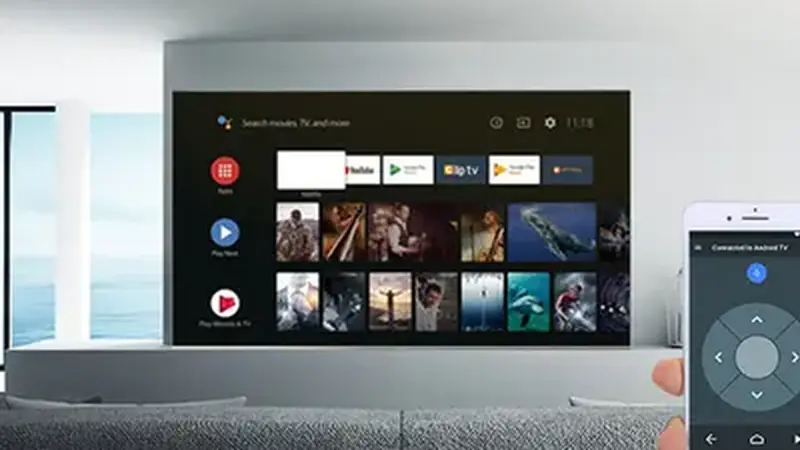
The app is built for touch, so a plain remote is painful. Pair your phone as a remote with the Android TV remote app, or plug in a cheap air mouse: both turn scrolling from torture into something pleasant. A Bluetooth keyboard helps for search and login.
What works and what does not
Watching is glorious: the For You feed, region-unlocked clips, and watermark-free downloads all work, and downloads land in the TV's storage where a file manager can find them. Recording is the weak spot, since most TVs have no camera or microphone worth using, so treat the TV as a viewing station and keep creating on your phone. If the install itself fights you, the phone-side install guide covers the same steps in more detail.