Before you start
You need about 1 GB of free space (the file is 478.6 MB and Android wants breathing room), a phone on Android 5.0 or newer, and a stable connection. If the stock TikTok app is installed, decide now: the mod cannot sit next to it, so the stock app has to go. Your follows, likes, and DMs live on TikTok's servers, so nothing is lost except on-device drafts. Publish or save those first.
Grab the file from the TikTok Mod Cloud APK installer homepage, which always points at the exact build our bench tested. Third-party mirrors sometimes repackage files with extras you did not ask for, so the homepage is the only source we stand behind.
Step 1: Download the APK
Open the download page and wait for the 6-second countdown to finish. Tap the button when it appears and let the full 478.6 MB tiktokmodcloud.apk finish. Do not open it mid-download: a partial file is the number one cause of the dreaded parse error. If your browser warns that the file type can harm your device, that is the standard warning Android shows for every APK; tap Keep or Download anyway.
Step 2: Allow installs from your browser
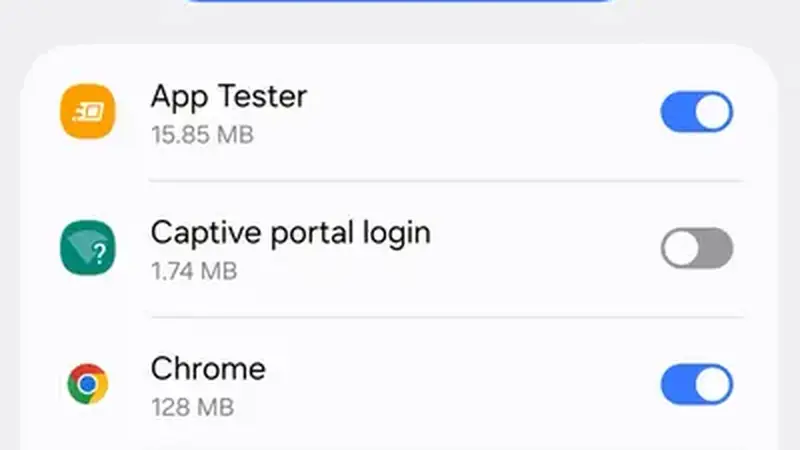
Open the finished file from your notification shade or the Downloads folder. Android will stop you with a prompt saying installs from this source are not allowed. Tap Settings on that prompt and flip on Allow from this source for your browser or file manager, then go back. You only do this once per app, and you can flip it back off afterwards.
Step 3: Install and handle Play Protect
Tap Install and wait. If Play Protect flags the file, tap More details then Install anyway. Play Protect flags every app that is not signed by the Play Store, including clean mods; the build here is scanned on our bench before release. When the installer finishes, tap Open, or find the TikTok icon in your app drawer.
What to do right after install
Sign in with your usual TikTok account and run three checks: scroll the For You feed for a minute, open any public video and confirm the download button in the share sheet saves with no watermark, and play a clip that was region-blocked for you before. If all three work, the install is healthy. If the install itself failed, the not-installing fixes walk through every error in order, and the update guide covers keeping the build fresh later.